I-Blast > Blast management > Measurements > Topography > Photogrammetry
I-Blast > Blast management > Blasts > Site > Background
I-Blast > Blast management > Measurements > Results > DNA-Frag
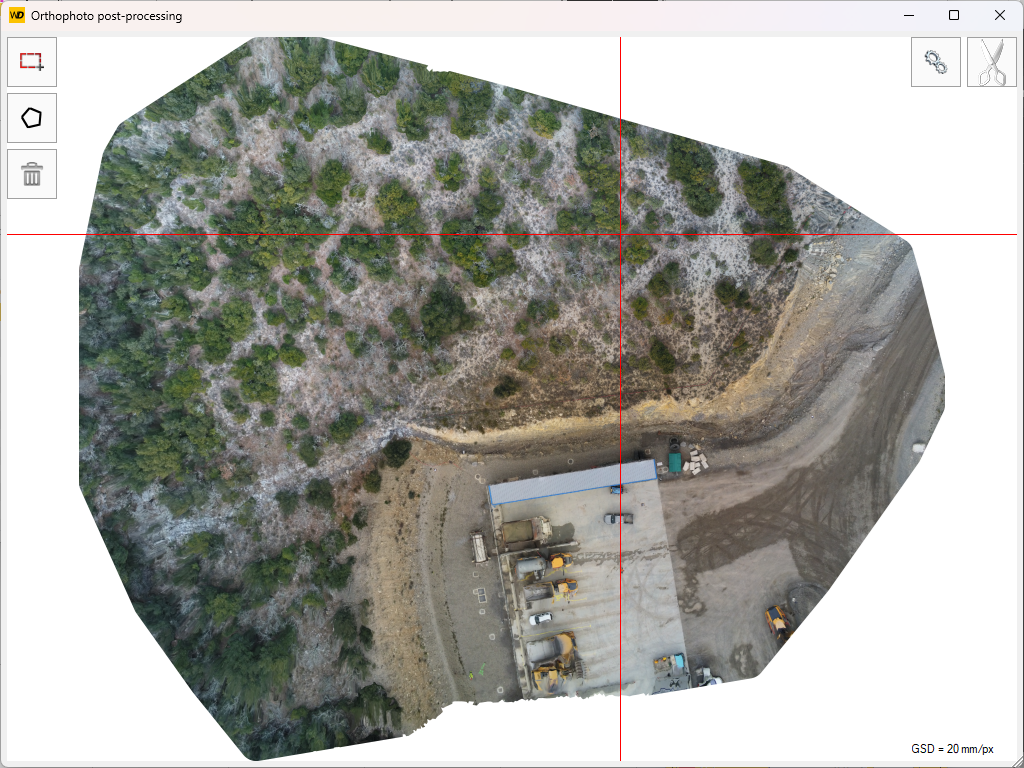
This window is used to manipulate orthophotos.
It is used in two cases:
- Following a photogrammetry operation
- To recut an orthophoto that is too large
Overview
Tools
Selection tools
On the left of the window is the selection toolbar. From top to bottom, rectangular selection, polygonal selection and deletion.
-
Rectangular selection :
The first click defines the first corner of the rectangle, the second validates the selection.
Each new click deletes the current selection and serves as the first anchor point for a new selection. -
Polygonal selection :
Each click adds a point to the selection.
Double-click to end and validate selection. -
Delete :
Deletes the current selection and deselects the current tool.
Processing tools
On the right-hand side of the window, horizontally, is the processing toolbar. From left to right, Rerun, Cut.
Rerun
This tool is only available after a photogrammetry operation.
It allows you to choose a new GSD for the selected area. If no zone is selected, the entire image is recalculated.
The result will be available under the name orthophoto_gsd_xxxx.tif in the output folder selected during initial generation.
If a DSM was generated during photogrammetry, it will also be recalculated with the new gsd and saved as dsm_gsd_xxxx.tif.
For DSM generation, see the Point Cloud Generation window. *DSM: Digital Surface Model, elevation map.
This feature saves time in the photogrammetry reconstruction phase. It is recommended to generate the global orthophoto with a “high” GSD, e.g. 50mm/pixel, and then use this feature to regenerate the area of interest with a “lower” GSD, e.g. 10mm/pixel.
Following a photogrammetry operation, the actual GSD of the orthophoto is displayed in the bottom right-hand corner of the window.
It may differ from the value required during the initial calculation or by this tool, if the requested value cannot be achieved with the data set supplied.
Cut
Uses the selection to resize the orthophoto.
The result will be available in the original orthophoto folder.
This feature is particularly useful for fragmentation analysis. It can be used to recut a large orthophoto a posteriori, typically to focus on the area of the muckpile.
The cut orthophoto will be saved under the name orthophoto_cut.tif in the original orthophoto folder (the result folder in the case of photogrammetry).
If this tool is used after a photogrammetry operation and a DSM is associated with the orthophoto, a dsm_cut.tif file consistent with the orthophoto cutout is also generated.