I-Blast > Blasts management > Measurements > Results > DNA-Frag
I-Blast > Blast management > Blasts > Design > Measurements > Results > DNA-Frag
This window lets you perform fragmentation measurements on images.
Overview
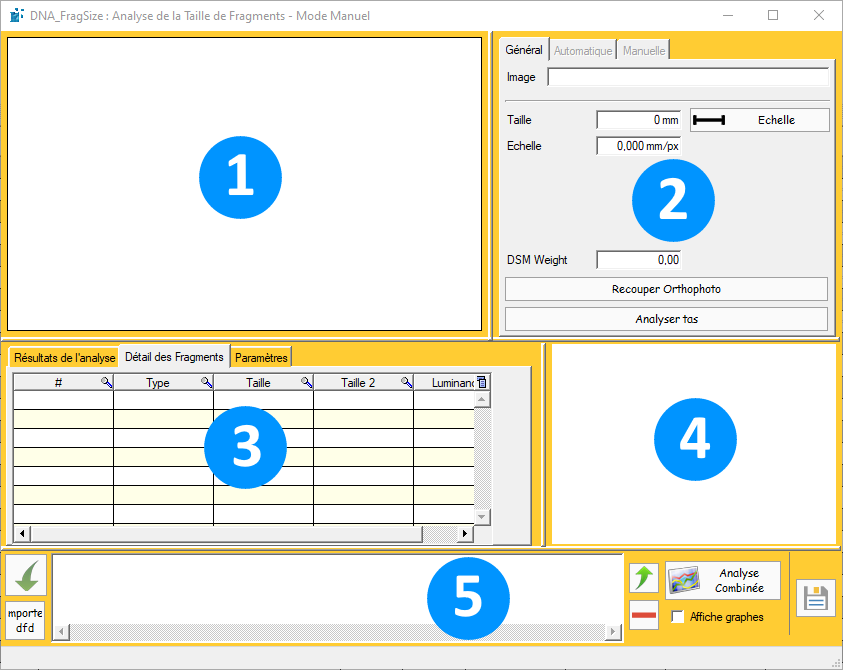
General description
The window can be broken down into 5 parts.
- View of the image being analyzed
- Detection parameters and tools
- Detailed analysis results
- Fragmentation distribution graph
- Management of saved analyses
Single image analysis
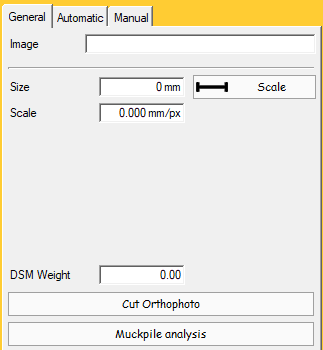
The Image field lets you select the image to be analyzed.
Clicking on it opens a file selector.
Supported formats are .BMP, .JPG, .PNG, .TIF.
Once the image has been loaded, the scale can be set.
Two options are available:
- Define the scale directly, if its value is known (in mm/px or in/px), by filling in the
Scalefield. - Define the scale on the image using a scale element:
- Click on the
Scalebutton, then locate the desired dimension on the image (one click to begin selection, one to end). - Fill in the
Sizefield with the corresponding actual dimension
- Click on the
Automatic
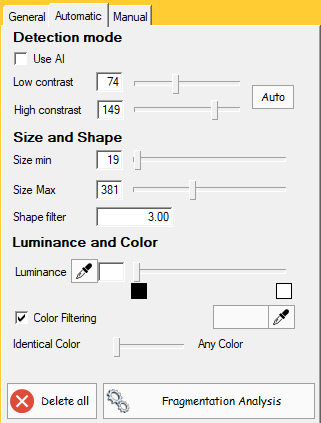
This tab gives access to the automatic fragment detection module and its parameters.
Detection mode
AI Detection

The Use AI option allows you to use Artificial Intelligence to detect elements.
In this mode, the Low Contrast and High Contrast parameters are not required.
The Luminance filter is not available in this mode.
This mode requires the installation of an additional module.
The installation of this will be automatically proposed when the option is activated.
Image processing times in AI mode will generally be longer than in contrast mode.
Processing times can range from a few seconds to a few tens of seconds per image, depending on the characteristics of the computer used.
Detection by contrast

Traditional image analysis detection mode.
Uses Low Contrast and High Contrast contrast settings to detect feature contours.
The Auto button automatically determines a set of parameters for the image. Starting point for manual parameter adjustment.
Size and shape
Size min: Any fragment detected whose minor axis is smaller than this size will be filtered out.
To help set this min size, a yellow circle representing it is drawn on the image.Size max: Any fragment detected whose major axis is greater than this size will be filtered.
To help set this min size, a yellow circle representing it is drawn on the image.Shape filter: Any fragment whose ratio $great\ axis \over small\ axis$ is greater than this value will be filtered out.
Color and Luminance
Two additional filters are available:
Luminance: This filter eliminates the darkest elements.
Use the potentiometer or dropper to set the brightness threshold below which elements will be rejected.
A threshold of 0 (potentiometer fully to the right) deactivates this filter.
This filter is not available in AI mode.Color Filtering: This filter retains only elements close to a defined color.
The color must be defined using the color picker.
Tolerance on color is set using the slider.
Actions
Delete all: Resets an automatic detection already performed.Fragmentation Analysis: Starts detection and displays results. See Results
Manual analysis
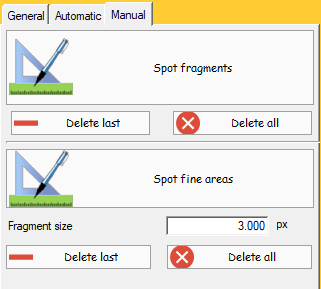
The Manual tab lets you manually locate fragments (or add missing fragments to an automatic analysis).
Orthophoto
The Muckpile analysis button switches to orthophoto analysis mode and opens a file selector.
Supported formats are .BMP, .JPG, .PNG, .TIF.
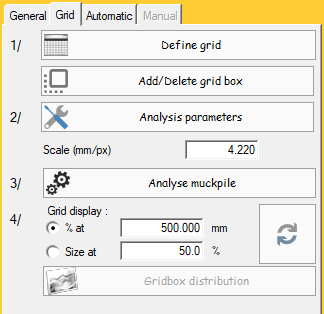
Define grid: Allows you to define the analysis grid. A first click fixes the corner of a square, then you can define the orientation and size of the grid box by fixing the second corner of the square. You can then define a grid from this square by confirming it with a final click.Add/Delete grid box: Once the initial grid has been defined, you can add or delete boxes one by one by clicking on them.Analysis parameters: Click on this button and then on a grid box to select and test the detection parameters for this grid box.Scale:Analyze muckpile:Grid display:% at: the percentage of fragments whose size is less than this threshold set in mm (the “passing to”) will be displayed in each of the previously drawn boxes. The values displayed in the boxes are expressed in % (0 to 100).Size at: selecting this option displays the size corresponding to the % of the passer-by entered in each of the previously drawn boxes. Values displayed in boxes are expressed in mm (0 to max_size of user-defined classes).
Results
Detailed analysis results
Distribution
Management of saved analyses

This section is used to manage the saving and restoring of analyses with their parameters. All analyses present in the banner are saved in the selected blast's data and will be accessible again the next time the window is opened for this blast.
- Save current analysis:
Saves the current analysis, its parameters and results. A thumbnail appears in the banner representing this analysis. - Restore selected analysis:
Loads the parameters (if available) and data of the analysis selected in the list.
This analysis can then be modified. - Delete selected analysis:
Deletes the selected analysis from the list of saved analyses.
This operation is irreversible
Combined analysis: Combines data from the all analyses selected in the list.
The result will be available for consultation only.Display graphs:
Changes the thumbnail display mode. Saved analyses are represented by their distribution rather than by the analyzed image.- The
 generates a PDF report of the current analysis. This report will be saved in the Results section of the blast reports.
- The
 button saves the results displayed (analysis alone or combined) as the blast fragmentation result.
These data are used for fragmentation calibration in the digital twin module or for generating a measurement report from the report window.