I-Blast > Blasts management > Blasts > Blast Info
Preview
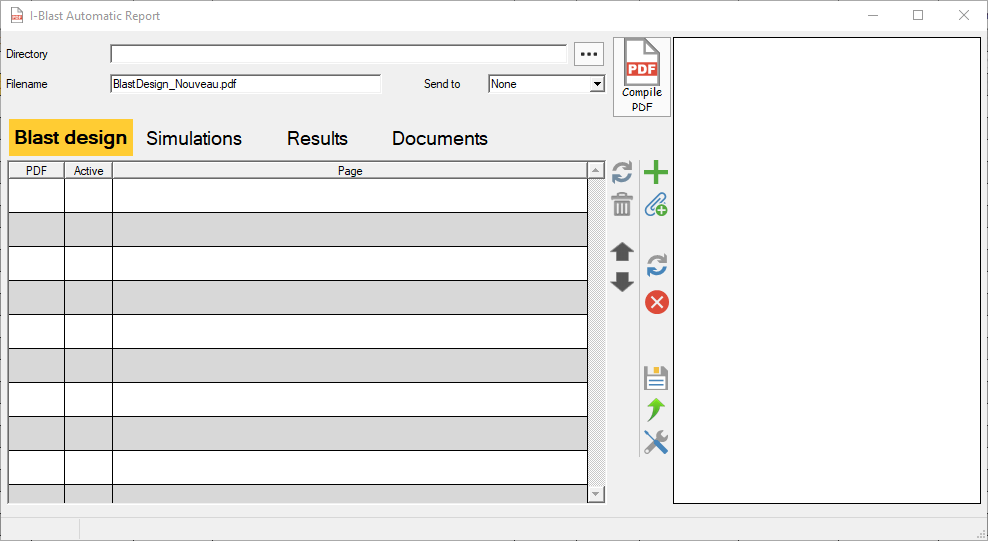
The window is composed of four parts:
- Report saving settings
- Report content settings
- Action buttons
- Preview
Window Structure
Report Saving
The Directory and Filename fields define the save path.
This path can be a local path (on the machine where I-Blast is running) or a network path.
The Send to list allows you to choose a team from the mailing lists. If a team is selected, after the report is generated, your email client will automatically open a new email composition window and pre-fill the recipients with the mailing list addresses. The report will also be attached to the email.
Report Content & Categories
This section allows you to view the various pages and documents that make up the reports. There are three types of reports:
- Blast design: Includes everything related to the design/definition of the blast parameters.
- Simulations: Includes all simulation results (projections, vibrations, fragmentation, attenuation law).
- Results: Includes seismic measurements as well as vibration simulation results.
The Documents category is separate.
It allows you to group external documents into I-Blast, as well as complete reports generated by I-Blast for the three categories mentioned above.
Each category displays the same table consisting of three columns: PDF, Active, and Page.
- The first column (PDF) allows you to view the page in a PDF reader.
- The second column defines whether the page is active. This affects several functionalities.
- The last column provides the name of the page included in the report.
Action Buttons
The Compile PDF button generates the report and saves it to disk.
The other action buttons are divided into two columns.
The first column allows you to act on the selected page in the table:
 Regenerate/refresh the page
- 🗑️Delete the page
- 🔼🔽 Change page place in report pages order
The second column allows you to manage the report content itself.
 Switches to page addition mode
 Allows you to add an external document to the current category (Blast Plan, Simulations, Results, Documents).
- Regenerates/Refreshes all active pages in the current category.
 Deletes all pages in the current category regardless of their status (active or not)
 Saves the configuration of the current category as a report template
 Allows you to load a previously saved template. If pages are already present, a confirmation will allow you to choose between adding the template pages or replacing all the category pages with those of the template.
⚠️ Does not generate or activate the added pages Allows you to manage templates:
- Create a new template
- Delete an existing template
- Modify an existing template (add/delete pages, reorganize, and change the parameters of the included pages)
Workflow and General Operation
Since the general operation is the same for each type of report, we will take the example of a Blast Plan report here.
- Select the report type, in our case,
Blast design. - Use the button to switch to page addition mode.
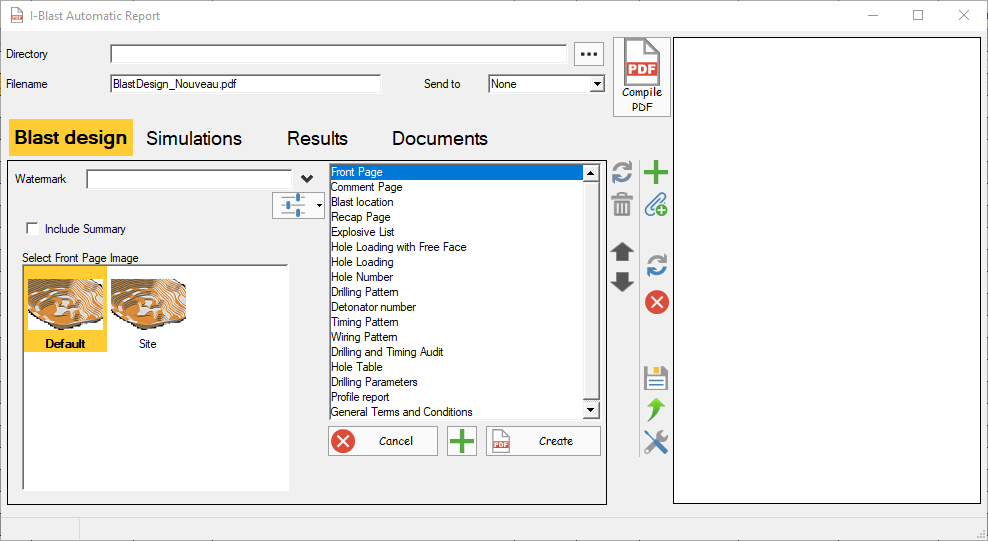
- Choose the page to add from the list on the right
- Use the left part to configure the page with the available options
- Use either the button to add the page without generating it or Create to generate the page directly and make it active.
- Repeat steps 2.1 to 2.3 until you have all the desired pages.
- If necessary, use the 🔼 and 🔽 buttons to reorganize the pages as you wish.
- If you have modified the blast plan since adding certain pages to the report, it may be necessary to update them. To do this, use one of the buttons . The one in the left column to update only the selected page or the one in the right column to update all active pages.
- If this report structure suits you and you wish to reuse it in the future, use the button to save it as a template. Later, you can restore it in another blast plan with the button.