I-Blast > Gestion des tirs > Tirs > 3D > Affichage
I-Blast > Gestion des tirs > Tirs > Conception > Affichage > 3D > 3D
Aperçu
The camera view is a feature that enables the 3D view to be oriented and positioned according to reference points selected on an image (frame) that may be extracted from a video by the module.
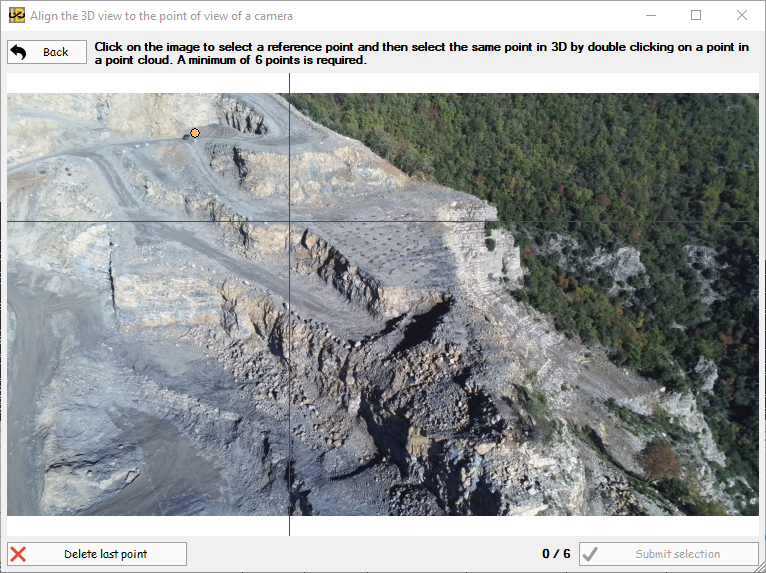
Choosing a reference image
From a picture
Directly go to selecting reference points
From a video
In the case of a video file, the video is displayed in the following window:
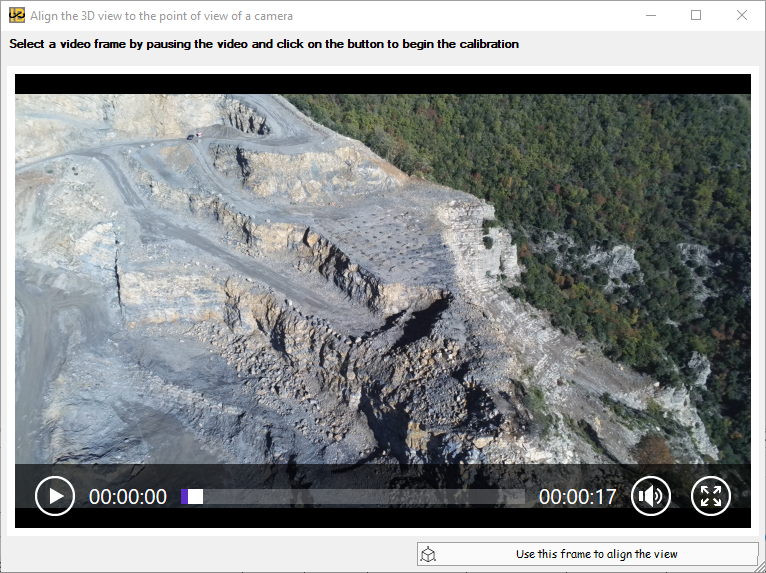
It can be scrolled using the controls below.
The Use this frame to align the view button will capture the current frame of the video for the next step.
Selecting reference points
This view displays the selected image.
You can zoom in with the mouse wheel and move around with the mouse central button.
To align the view, select reference points on the image and the corresponding points in 3D.
To do this, proceed as follows:
- Click on the image to position the reference point.
- Double-click on a point cloud in the 3D view to identify the 3D position of the reference point.
- Repeat these operations until you have at least six points.
(More points can be used for greater precision).
A different color will be assigned to each reference point to help identify them on the image and in the 3D view.
- The
Submit selectionbutton will be available once the minimal number of points has been reached.
This button performs the calculation that will determine the position of the 3D view corresponding to the image. This point of view will be automatically applied and saved (see the View control panel).
The Delete last point button is used to delete the last point positioned, for example in the event of an error.
The Back button returns you to the frame selection in the video (this button is only visible in the case of a video file).