I-Blast > Login
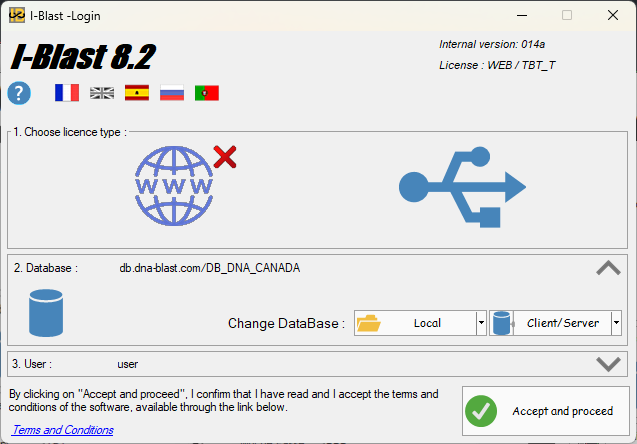
This window is the I-Blast login window.
It lets you select a license (WEB or USB) and connect to an I-Blast database.
Preview
General
In the upper part of the window you will find various general information and tools
Software version
At top left, you'll find the main version of the software (here I-Blast 8.2).
This is the commercial version of the software.
At the top right is the internal version of the software (v013k). This is the reference used to identify the various software updates.
If technical support asks for your software version, it is the internal version.
Language
The flags are used to select the language of the login window.
Click on the flag of the language you wish to see displayed.
The shaded flag corresponds to the active language.
? Menu
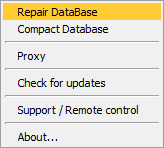
The Repair Database option corrects some database errors. It is recommended to use this function only on request from technical support, or after making a backup of the database.
The Compact database option reduces the size of the database by compacting the data.
This option eliminates the "holes" left in the database following the deletion of certain data (equivalent to disk defragmentation).
It therefore only has an effect if voluminous data such as point clouds or pdf files have been deleted from the database.
These two database tools can only be used on a local database.
The Proxy option lets you define the proxy parameters to be used for the Internet connection.
The Check for updates option lets you check whether a software update is available.
The software normally performs this check each time it is launched, but it may fail, depending on user rights or Internet connection. This option therefore allows you to force the check.
The Support / Remote control option launches a remote control utility which, after a confirmation message to technical support, allows you to take control of your machine.
This option must be used on request from technical support.
There is no need to run this utility without first contacting the technical support.
You can contact the technical support :
- By e-mail to support@tbtech.fr
- By phone : +33 950 445 543
The About... option opens an information window containing additional general information about the software.
License
This section allows you to connect an I-Blast license.
There are 2 types of license:
- WEB licenses
- USB licenses
Whether you want to connect a WEB license or activate a USB license, you need :
- A connexion internet.
If your connection goes through a firewall, it must allow connections to the www.i-blast.net server.- the user / password for the I-Blast license account.
These identifiers were given to you by I-Blast technical support when you purchased your licenses.
In the top right-hand corner of the window, below the internal version, you can see the current license:
License/VWR: VWR[1] indicates that no license is connected and that the software is in read-only mode.
License/WEB/XXX_MMMindicates that a license WEB is connected, where XXX_MMM corresponds to the type of license connected (e.g. EVO_FVCA or ULT_VS).License/USB/XXX_MMMindicates that a USB license is connected, with XXX_MMM corresponding to the type of license connected.
In this case, a number of the formUSB FB5127910000XXXXis displayed below.
This corresponds to USB key serial number. XXXX being the number of the key indicated on the label when it was received.
WEB

This button opens the WEB licenses connection window :
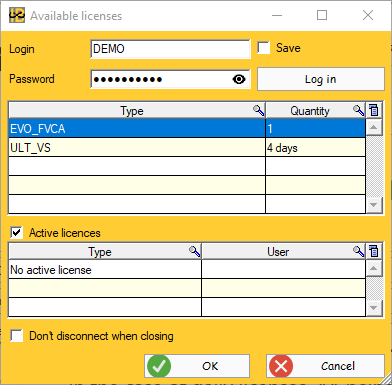
The Login and Password fields must be filled in with the license account IDs.
When clicking on the Log in button:
- If the connection is successful, the available licenses will be displayed in the table.
- Otherwise, a message describing the error will be displayed
If the Save box is checked I-Blast will save your license IDs and connect retrieve automatically the list of available licenses when you open this windows.
The available licenses table displays the type of license available and their quantity.
The quantity column contains :
- the number of licenses of the type displayed in the case of annual or unlimited licenses
XX daysin the case of daily licenses, XX being the number of days remaining on the license.
When connecting to a daily license, a confirmation message indicates that a day of use is about to be consumed.
Once the day has been used up, this license can be used for 24 hours by one person at a time, without using up another day.
In this case, the quantity column will showXX days *, the * indicating that a day of use is active.
By checking the Active licenses box, you can see in the table below all the licenses currently in use, together with the name of the workstation on which each license is being used.
The checkbox Do not disconnect on closing locks the selected license on the PC.
When this box is checked, the license will remain active until it is manually disconnected.
If the license is to be shared between several I-Blast users, it is preferable to leave this box unchecked to avoid forgetting to release the license.
Once a license has been selected in the available licenses table, clicking OK will connect the license to the PC.
The license will then be unavailable to other users until I-Blast is closed or the license is manually disconnected.
Clicking on Cancel will close this window without connecting any license.
Once a WEB license has been connected, the WEB license connection button is modified:

Clicking on this button will manually disconnect the license.
The WEB licenses management plateform allows the license account administrator to disconnect WEB licenses.
USB

This button opens the USB license activation window:
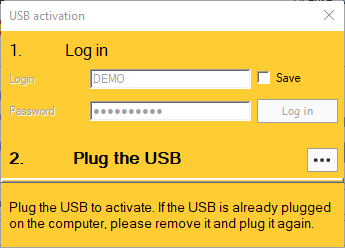
As with the WEB license connection window, the fields Login, Password, Save and Log in are used to connect to the license account.
Once connected, the text "Plug the USB" flashes and the window waits for the USB key to activate to be inserted.
You can also select the USB key to activate by clicking on the  button.
In this case, a selector opens, allowing you to choose the USB key by its disk drive (for example E: or F:).
If the activation was successful, the window will close automatically and the USB license will be connected.
If not, a message describing the error will be displayed.
Database

There are two types of database:
- local databases
- Client/server databases
The current database is displayed in the section title.
- A folder path indicates a local database.
(for example C:\Users\User\Documents\DNA_Files\DB) - an URL indicates a Client/Server database.
(for example : 188.212.68.153/DB or www.myserver.com/DB)
The ▼ menu of the buttons displays a history of the last databases of each type used.
These histories stores up to the last 5 bases.
In the event of a connection error to a new local or client/server database, the software will automatically reconnect to the previous database.
Local
The Local button connects to a local database.
Clicking on the button opens a folder selector to choose the folder containing the database.
A local database is a folder containing *.fic, *.mmo and *.ndx files
A local database folder is accessible via Windows Explorer.
This folder must always be manipulated as a whole.
(complete copy of the folder for database backup, complete move of the folder...).
Individual files must never be manipulated or data may be lost.
Client/Server
The Client/Server button is used to connect to a server database.
Clicking on this button opens the following window:
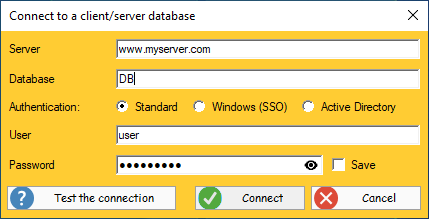
This window is used to define connection parameters to the server database.
Most of these parameters are supplied by the server administrator.
Server : Database server URL (Example : 188.212.68.153 ou www.myserver.com)
Database : Database name on the server
Authentication: Authentication mode to the database server.
The 3 modes are :
Standard: Authentication using a user and password declared at the database server level and supplied by the server administrator.Windows (SSO): Authentication using the current Windows session via the Active Directory protocol.Active Directory: Authentication using another Active Directory user.
The
Windows (SSO)andActive Directorymodes require you to be in a domain that supports Active Directory, and that the database server is hosted in the same domain and set up to handle this type of connection.
Contact TBT (support@tbtech.fr) for more information.
User and Password : Database server credentials.
These fields are used for Standard and Active Directory modes.
The Save option next to the Password field enables I-Blast to memorize the connection password and not ask for it again each time the software is opened.
This option is available only in Standard mode.
The Server, Database and User fields feature a data entry history, allowing you to quickly retrieve the parameters of a connection that has already been used.
The Test the connection button lets you query the server to check the validity of the parameters entered.
The Connect button validates the connection and closes the window.
The Cancel button is used to close the window without connecting, in which case the connection to the current database will be retained.
User

This section lets you select the database user to be used.
This account allows access to your data in the database.
When connecting to a Client/Server database in SSO or Active Directory mode, this section is not available.
Connection to the database is made using the same Active Directory user as for connection to the server.
You can view the accounts available in the database by scrolling down the list in the Login field.
There are 3 default users in I-Blast databases:
- admin : special account for managing database users
Logging in with this user will open the user management window.
In this window, the admin can create other users if required.
If the password of the admin user has not been changed, you can quickly log in with this account by clicking on then on
Accept and proceed. - user : default user for I-Blast.
The default password for this user is "user".
In the case of a local database, it is recommended to use this user without changing the password. - demo : additional anonymous user. The default password is "1397".
Do not confuse the different types of account used in this window:
Account Location Used for... Provided by... License WEB or USB License window connect to I-Blast licenses TBT or other I-Blast distributor Database server Client/Server database connection window connect to the server hosting the database server administrator Database User section access your data in the database created by the I-Blast database admin user Each of these accounts appears in a different section of the window.
Acceptance of Terms and Conditions
To continue and use the software, you must accept the terms and conditions of use.
To do this, click on the Accept and proceed button.
To view these terms and conditions, click on the Terms and Conditions link.
You can also consult them on the Legal page of the website.
Viewer (Read-only) ↩︎