Overview
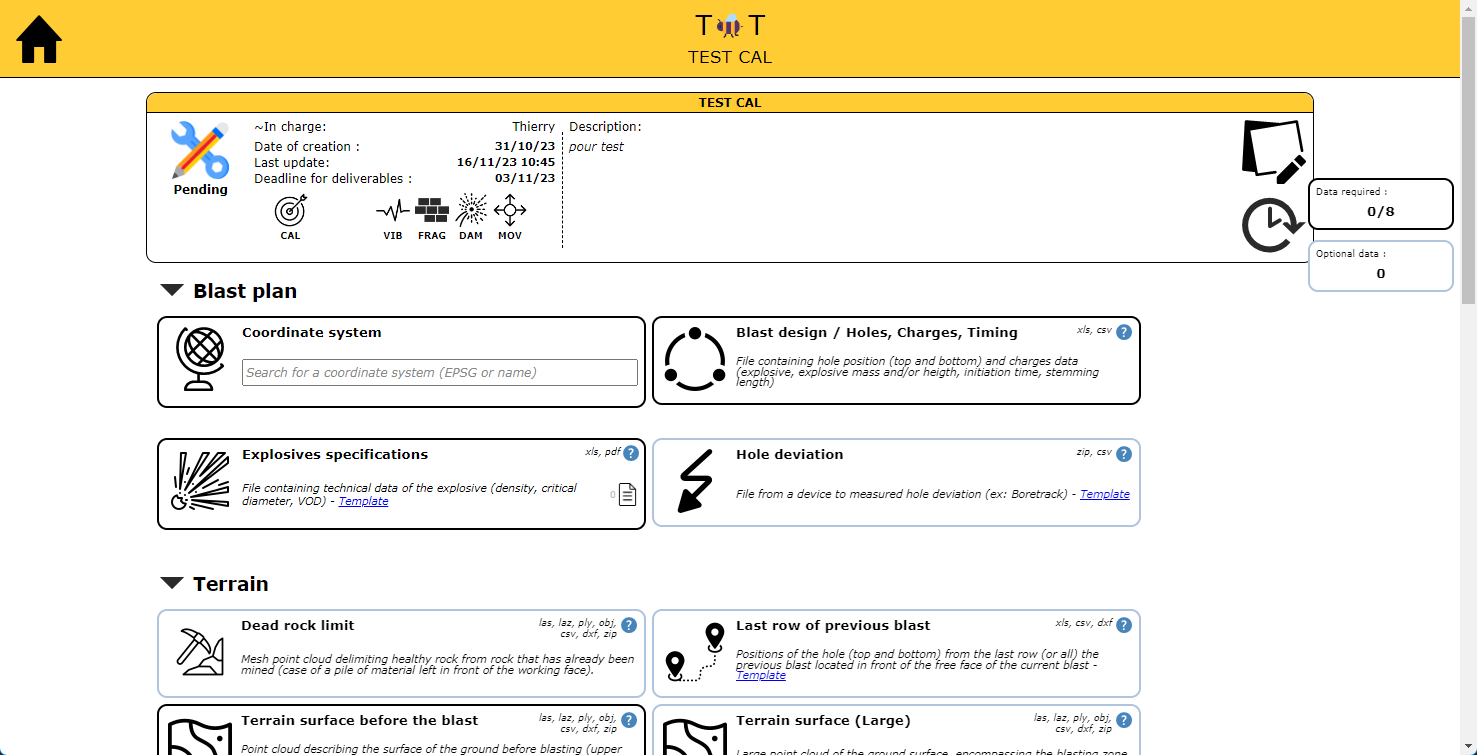
This page shows all the information required to send the request.
The information requested depends on the type of request and the themes selected.
Dataset general informations
The first part of the page lists the general information about the dataset
- The name of the dataset
- The contact person
- The date the dataset was created
- The date on which the dataset was last updated
- The deadline for deliverables
- The type of request and theme(s)
- The description of the dataset
The  button is used to edit general information about the file.
Modifying the type and themes may lead to a change of the informations required for the dataset.
The  is used to access the dataset's history.
Data cards
These data are presented in the shape of cards divided into different categories.
There are 3 types of card:
- Cards allowing you to enter a value such as the coordinate system
- Cards for uploading a single file
- Cards for uploading multiple files
These cards have a description so that you can obtain more information about the type and content of the file to be uploaded. For some cards, a template file can be downloaded by clicking on the Template file link in this description to fill in the information required by the expertise team.
Each card can be required or optional. The color of the frame around the cards helps to distinguish them: black for required data, grey otherwise.
When a file is uploaded, the frame changes color to green, so you can see at a glance which data has already been supplied.
To upload a file to a single-file card, click on the card to open a selector allowing you to choose the file to be uploaded.
You can also drag and drop the file onto the card.
Clicking on a multi-file card opens a popup allowing you to add a file:
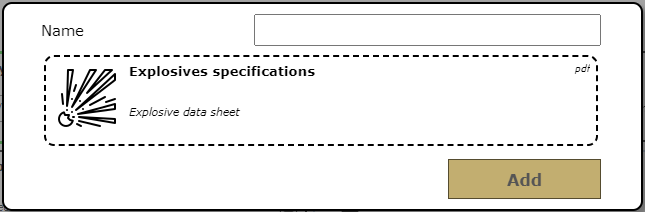
The dotted area of this popup behaves like a single-file card, allowing you to drop a file by clicking on it or dragging and dropping.
The popup can also ask for additional information about the file.
An antivirus scan is performed each time a file is uploaded, and if a file is detected as containing a potential threat, it will be instantly deleted and you will be asked to upload another one.
Send the dataset
Once you have filled in the necessary details, click on the Send button to send the dataset for expertise.
Once the request has been sent, it will no longer be possible to modify it until it has been analyzed by the service provider.
A required data counter is shown on the right-hand side of the page, so you can check the progress of the dataset at any time.
Incomplete dataset
If the files sent for expertise appraisal do not enable the analysis to be finalized, the status of the dataset will be changed to Incomplete.
When this status is changed, an e-mail notifying the change will be sent to the contact selected in the file.
The status of the cards whose data needs to be modified or completed will be updated. A comment entered by the experts may be visible to indicate why the file is unsatisfactory. The file should therefore be deleted and/or supplemented with other information.
Sometimes, an optional file may be made compulsory during the expert assessment. Here again, the status of the card will show which file has been made compulsory, and a comment may also be included.
The Display data option, pinned on the right, let you select the cards to be displayed :
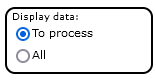
- To process : displays only cards requiring correction
- Tout : displays all cards in the dataset, including cards already validated and optional cards