title: Installation Tutorial
description: First step on how to use the app
marp: true
paginate: true
First Launch
Plan
Notations used in this tutorial
Most text are explanation on how to perform the title action.
-
Import
Represent the exact text that you can see in the interface, inside a button for instance. -
Choose a file
Quote block represents an action you should take in the application.
Installation
Scan the code QR

Download
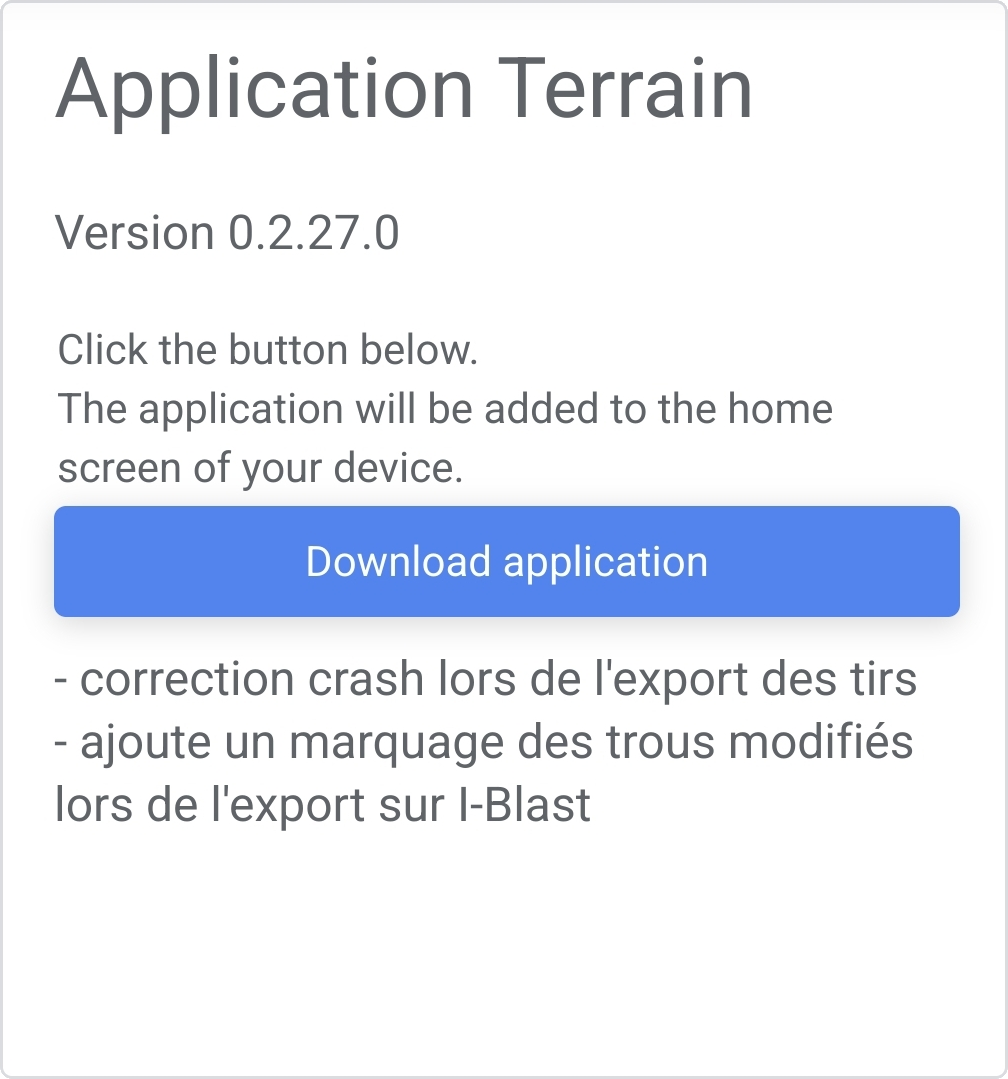
Click on
Download application
Open the .apk file
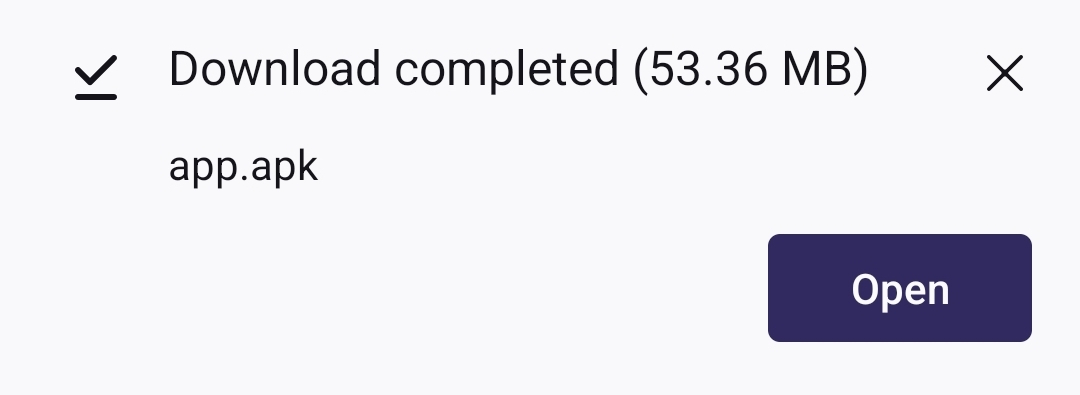
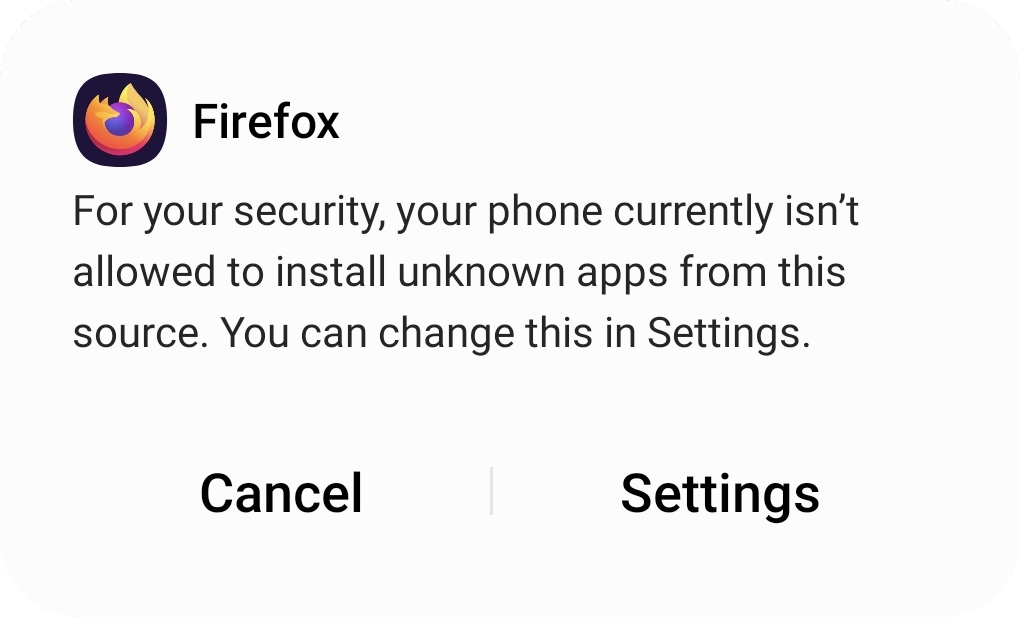
Give Permission
Open the application
Configuration
This is the first interface you will see once the app is installed and launched.
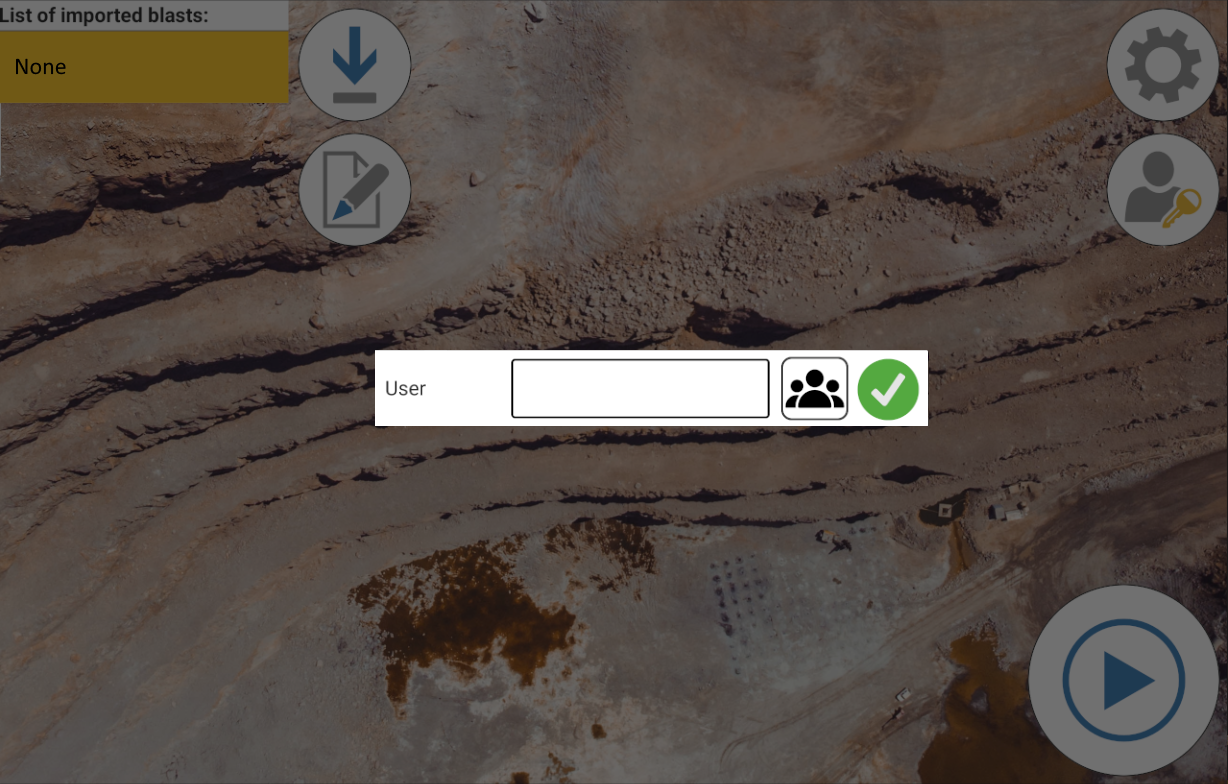
First thing to do, fill in the User name with the name of the Operator.

Type-in any name for the Operator and validate ✅
We will see how to change the Operator in the next part.
Settings
User settings 
If you need to change the current user/Operator, touch the button.
It opens the following pop-up.
The button displays the list of users you already entered.
Global settings 
In this panel, you can change some display parameters of the application.
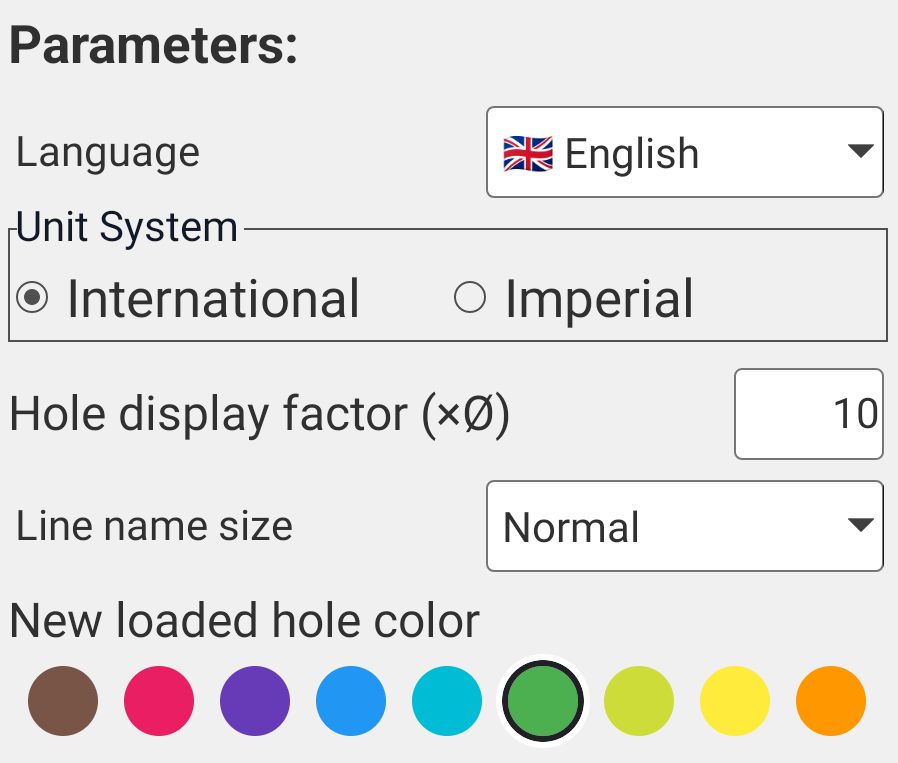
The most important for now are :
Language:
When working use the one you are most familiar with.Unit System:
Defines the unit system use everywhere in the app.
Other settings
The other settings are explained in the next slide. They can be cryptic but don't worry.
You will better understand them when using them or following other tutorials.
Hole display factor
Coefficient applied to hole diameter to improve visibility on map.
(If hole's diameter=100mm and coefficient=10, hole will appear with 1m diameter).Line name size
Name is displayed along the line in size depending on the selected option.
If Disabled option is selected, text is not displayed.New loaded hole color
When loaded, empty holes imported from I-Blast 8 and holes created on the tablet will use this color.Map background color
If no internet is available, or the map is hidden in the blast map display, this color will be the blast background color.
Following tutorials
When following tutorials, we recommend to use English to have the same interface as in the captures.
This should help understand which part of the interface we are discussing, particularly when using this annotation to indicate a specific word that is present somewhere in the screen.
By default the application should already be in English at first launch.
ℹ️ We will always use
Internationalsystem in tutorials