I-Blast > Blast management > Analysis > Audit > GHG
I-Blast > Blast management > Blasts > Design > Analysis > Audit > GHG
General
This window enables you to carry out a GHG analysis of the blast in order to measure its impact on the environment and compare it with other blasts or other extraction solutions.
This window takes the form of a wizard that runs through the various elements of the blast to enter the data required to calculate their GHG balances.
Overview
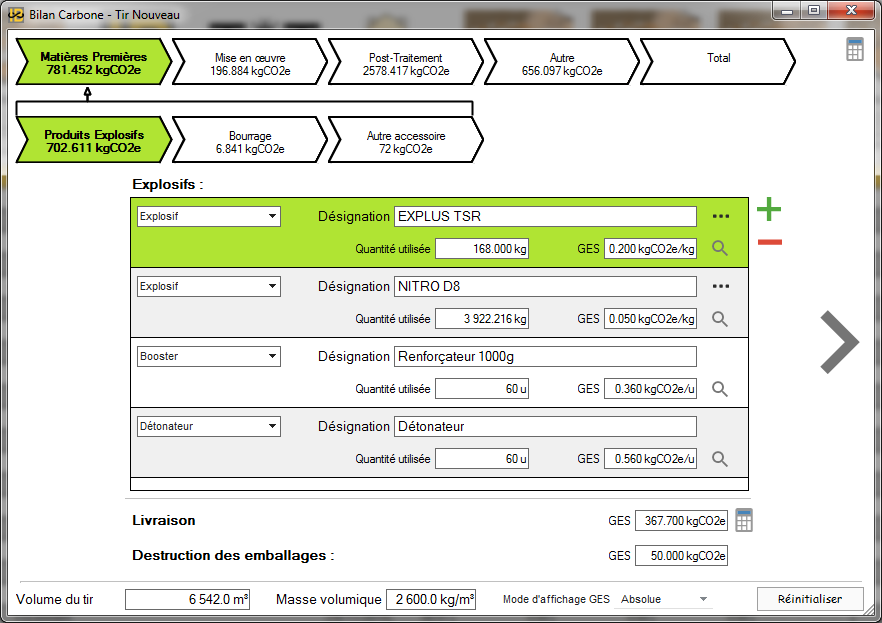
Structure
Here you can find:
- Top of the window:
- diagram summarizing the various process steps and the sub-steps of the current step
- the
 button to open a GHG calculation window for a trip/transport
- On each side:
- the
 button : jumps to the previous step or sub-step
- the
 button : takes you to the next step or sub-step.
- the
- At the bottom, a banner with general information:
Blast volume: Volume of blast materialDensity: Average density of materialsGHG display mode: Selects whether GHG values are to be displayed:- In absolute value : kgCO2e
- In volume value: kgCO2e/m3 (In this case, the blast volume must be entered)
- In massic value: kgCO2e/t (In this case, blast volume and density must be entered)
- The
Resetbutton: resets the module.
All values entered will be deleted and the module will be pre-filled with the blast analysis.
To move from one step to the next, use the and buttons, or click directly on the step to be opened in the step diagram.
Most steps contain lists allowing you to add several elements to be taken into account in the calculation.
Use the  button to add an item and the
 button to remove the selected item.
These buttons are located at the top right of each list.
The
button searches for default values for selected elements.
These values come from various sources, including for example Ademe.
Route calculator
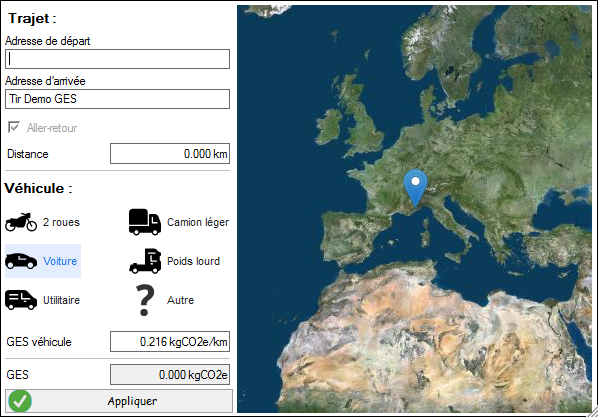
This tool calculates the GHG footprint of a journey.
It opens when you click on the button located :
- next to the relevant field
- at the top right of the window
Route :
The distance can be calculated automatically by entering :
- Departure address
- Arrival address
- Check the
Return tripbox if the return trip is to be taken into account
Address entry fields are auto-completed.
By entering a valid departure and arrival address, the route is displayed on the map and the Distance field is automatically filled in.
To benefit from this feature, you need to select an API Provider compatible with route calculation.
Compatible providers are : MapBox, IGN
It is also possible to enter the distance value directly in the Distance field.
Vehicle:
To calculate the GHG of the journey, it is necessary to know the kgCO2e/km value of the vehicle.
To do this, a list of average values for different vehicle types is provided.
Selecting a vehicle type from this list will automatically fill in the Vehicle GHG field.
You can define a customized GHG value in kgCO2e/km by entering it directly in this field.
The Apply button saves the GHG value calculated for the trip.
If the tool is opened from the general button at the top right of the window, the value is copied to the clipboard.
If the tool is opened from a field, this field will automatically be filled with the value.
Moreover, in this case, the calculation details will be restored if the tool is re-opened on the same field.
Process steps
Raw materials

Produits Explosifs
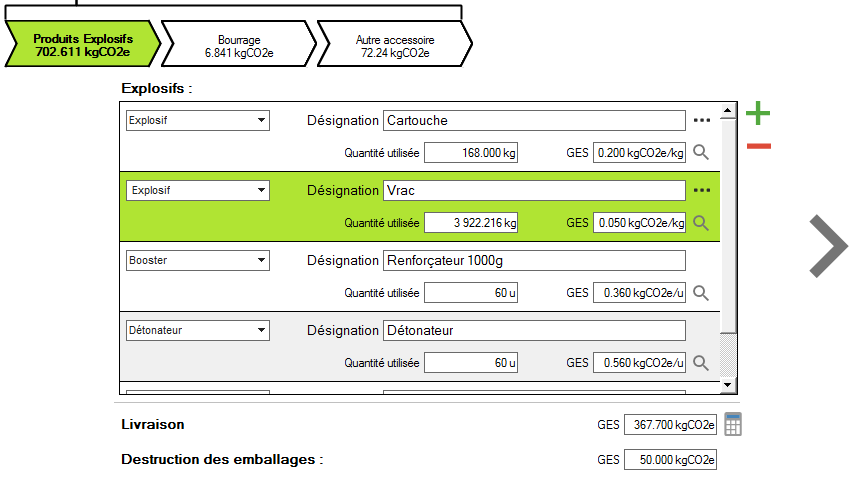
This step calculates the GHG footprint of the various explosive products used in the blast.
For each of them, we find :
- Product type**: choose from
Explosive,Detonator,Booster,Cord. - Product
designation - The
quantity usedin kg|u|m according to product type - The
GHGper product unit in kgCO2e/kg | kgCO2e/u | kgCO2e/m according to product type
The Delivery field indicates the GHG balance in kgCO2e of transporting the explosive from the depot to the site.
It is possible to use the Route Calculator for this field.
The Packaging destruction field is used to enter the GHG balance in kgCO2e associated with the explosives packaging destruction method.
Stemming
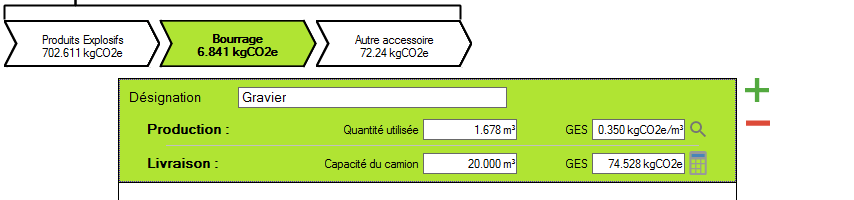
This step is used to calculate the GHG footprint of the various products used to fill the blast holes.
For each of them you will find :
- Product
designation - The
quantity usedin m3. - The
GHGof production in kgCO2e/m3 - Capacity of vehicle bringing product to site
- The
GHGbalance in kgCO2e of the journey to deliver the product to the site
You can use the Route Calculator for this field.
Other accessories

This step calculates the GHG footprint of the various additional accessories used for the blast.
For each of them you will find :
- The
Designationof the product - The
quantity usedin u. - Production
GHGin kgCO2e/u.
Implementation

Drilling

This step is used to calculate the GHG footprint of the various drilling machines used for the blast.
For each of them, you will find :
- Machine
designation - The
Length to be drilledin m by the machine - The
Yieldin m/h. - The
GESof machine use in kgCO2e/h.
Loading
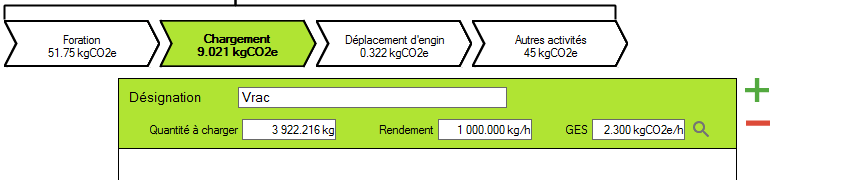
This step enables us to calculate the GHG footprint of the various bulk explosive loading machines used for the blast.
For each of them you will find :
- The
Designationof the machine - The distance in m at which the machine is moved on site
- The distance in m to evacuate the machine for the blast (this distance will be counted twice, for evacuation and reinstallation).
- Speed of machine movement on site in km/h.
- GHG emissions from machine movement in kgCO2e/h.
- The
Efficiencyin kg/h. - GHG balance in kgCO2e of any off-site travel by the machine (on its own or as a load carrier)
You can use the Route Calculator for this field.
Other activities

This step is used to calculate the GHG footprint of the various additional activities required for the blast.
For each of them we find :
- The
Designationof the activity - The activity's
GESbalance in kgCO2e.
Post-Processing

Loading
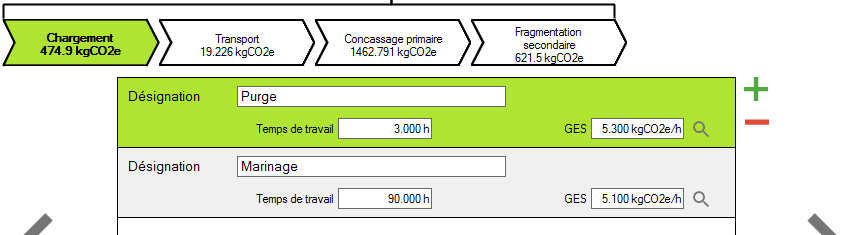
This step enables us to calculate the GHG footprint of the various activities and associated equipment required for mucking out the blast.
For each of them we find :
- The
Designationof the activity - The
Working timerequired in h. - The
GHGof the machine in kgCO2e/h.
Transportation
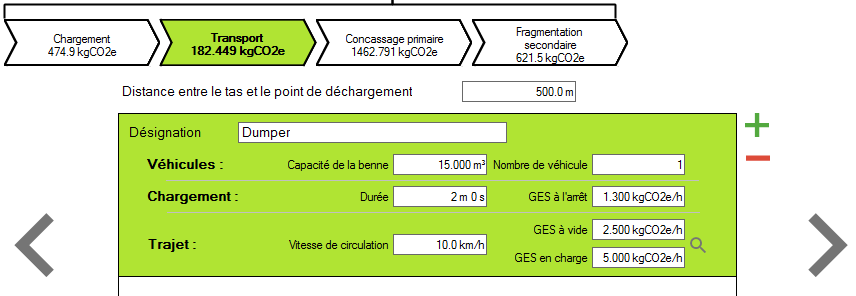
This step is used to calculate the GHG balance for the transport of blast materials between the muckpile and the unloading point.
The Distance between muckpile and unloading point field in m applies to all machines.
For each piece of equipment used, you will find :
- Machine
designation - The
Dump capacityin m3. - Number of vehicles of the same type used
- Average loading time for the vehicle
- The
Circulation speedof the machine on the site in km/h. - The
GHG at standstillin kgCO2e/h of the machine during the loading phase - The
empty GHGin kgCO2e/h of the machine during the journey from unloading point to muckpile - The
GHG loadedin kgCO2e/h of the machine during the journey from muckpile to unloading point.
The calculation of this step assumes that each declared machine makes the same number of trips.
Primary crushing

This step is used to calculate the GHG footprint of the primary crushing of blast materials.
For each crusher you will find :
- Crusher designation
- The
Period of useof the crusher
This value is used to define the % of crusher use for mucking the blast.
For example:
If crusher A has a weighting of 1 and crusher B has a weighting of 2, this means that :
For every ton of material passing through A, 2 tons will pass through B
or
1/3 of the material in the muckpile will pass through A and 2/3 through B. - Capacity” in t/h.
- the
GHGof the crusher in operation in kgCO2e/h.
The GHG is calculated only on the processing time of the materials in the muckpile, assuming that the flow rate is constant and equal to the capacity.
Secondary fragmentation
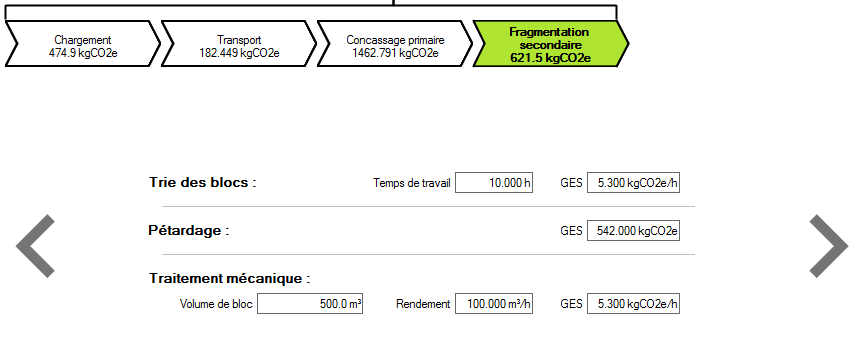
This step makes it possible to calculate the GHG impact of any secondary fragmentation of the blocks resulting from the blast.
Fragments sorting:
Working timein h required for fragment sortingGHGof the machine in kgCO2e/h.
Bursting: GHG of secondary blast in kgCO2e.
Mechanical treatment:
Block volumein m3 processed by mechanical methodsOutputof machine used in m3/h.GHGin operation of the machine used in kgCO2e/h
Others
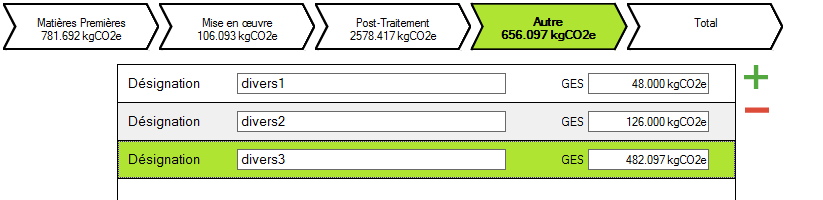
This step is used to add other additional GHG emission items.
For each of them, you'll find :
- the
Designationof the item - the
GHGof the item in kgCO2e.
Total
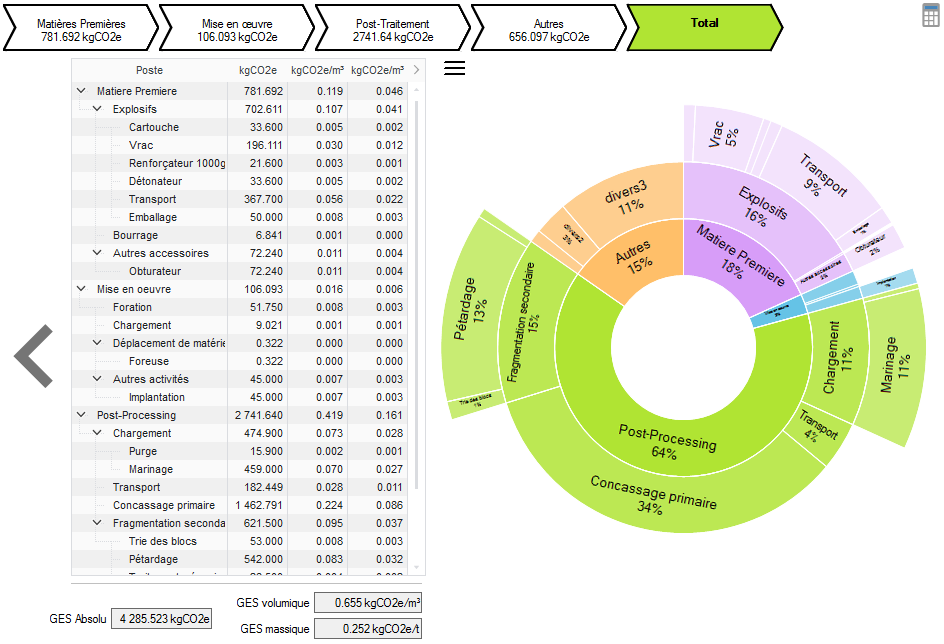
This step is the calculation summary.
It includes :
- A table summarizing the absolute and volumetric GHGs of the various stages
- The absolute and volumetric GHGs of the blast
- A graph showing the distribution of the various GHG emission items
The  button at the top left of this window creates a file containing the summary displayed on the screen.
You can then print or save the report in PDF format.