I-Blast > Blasts management > Global
Overview
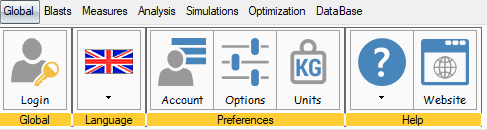
Global
Clicking on the Home button logs out the current user and returns to the Home window.
Language

Clicking on the language selection button will open a menu allowing you to select the I-Blast display language.
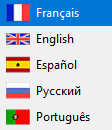
Once the language has been selected, the interface will be dynamically modified.
Preferences
Account

This button opens the Account window:
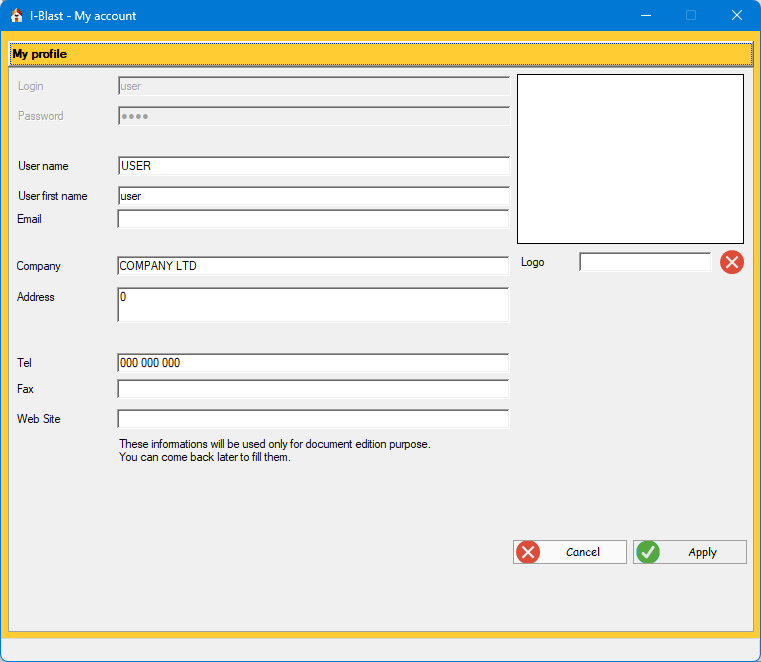
This window allows you to modify your login and password as well as general user information used in the reports.
Options

This button opens the options window of the software.
Units

This button is used to change the software unit system.
KGindicates that the software is in metric units.Lbindicates that the software is in imperial units.
Help
General help
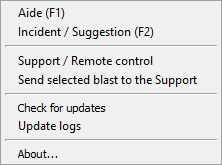
Help (F1) opens the help page for the current window.
The help page can be opened from any I-Blast window by pressing the F1 key on the keyboard.
Incident/ Suggestion (F2) opens the suggestion window to suggest new features or report bugs.
This window can be opened anywhere in the software by pressing the F2 key on the keyboard.
Support/Remote control opens the remote control utility to facilitate intervention by I-Blast technical support.
This utility uses Teamviewer software, so it is necessary to close Teamviewer beforehand if it is already running.
To do this:
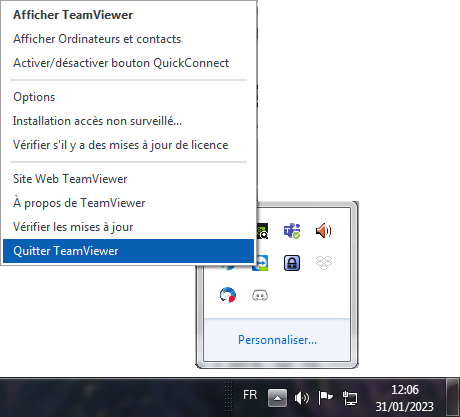
- Find the Teamviewer icon among the running programs on the right-hand side of the taskbar.
Right-click on the icon
- Select "Quit Teamviewer".
This utility requires a member of the technical support team to process the request.
It is advisable to contact technical support in advance and use this option on request.
Send selected blast to Support transmits the current blast to the medium without using a file.
Clicking on this option opens a window for selecting the data to be attached to the blast design (point clouds, results, seismic recordings, etc.).
Once you have selected the items to be sent, click on the Export button to transfer the blast.
Check for updates allows you to check whether a software update is available.
If so, the software will offer to install the update.
Update logs to access a window showing the changes made by each update.
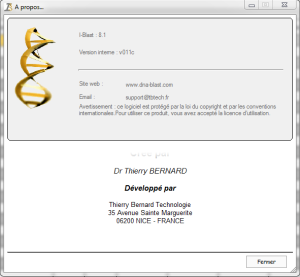
About... opens a window containing general information about the software:
Website
This button opens the DNA-Blast Group website