I-Blast > Blast management > Blasts > Design > Simulations
Overview

This section contains blast simulation functions.
Theoretical
This button opens the projection and fragmentation simulation window for a theoretical mesh.
Complete blast
Energy distribution
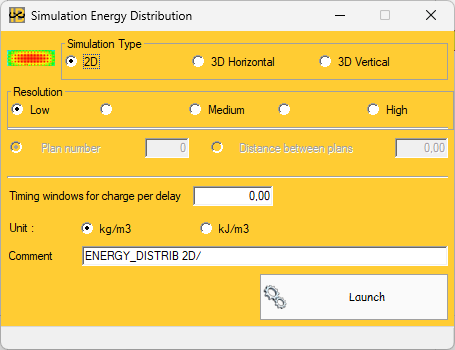
This button opens the energy distribution calculation window.
Seismic simulations using charge per delay
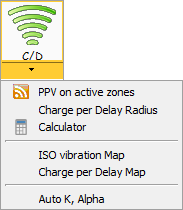
This button and its menu bring together the functions for calculating vibrations using the unit load method.
Clicking on the button performs the same action as the first menu item PPV on active zones.
PPV on active zones
This option calculates the PPV per unit load at the center of all active zones.
This calculation uses the K and alpha parameters for each zone.
Click on this option while holding down the CTRL key to access the following option window:
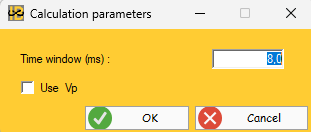
This window lets you specify the size of the Time frame in milliseconds used to calculate the unit load.
By default, the value of this time window is equal to that defined in user options or to the last value used for this blast if it has been modified.
It is also possible to enable wave travel time to be taken into account with the Calculate with Vp option. In this case, the P-wave speed value for each zone will be used.
The parameters used for the calculation and the group of holes causing maximum vibration can be found in the calculation log.
You can view the results for all zones directly on the 2D plan by activating the PPV display by zone (see Display pane).
Charge per Delay radius
This option enables the display of maximum charge per delay radius on active zones.
To use this function, it is necessary to define the circles to be used using the distance measurement tool with the Capture Zone option.
The function will then draw circles using these distances around all active zones.
For each of these circles/zones, it will indicate the value of the maximum charge per delay to be used at that distance so as not to exceed the zone's PPV limit.
This value is indicated with the distance at the top right of each circle.
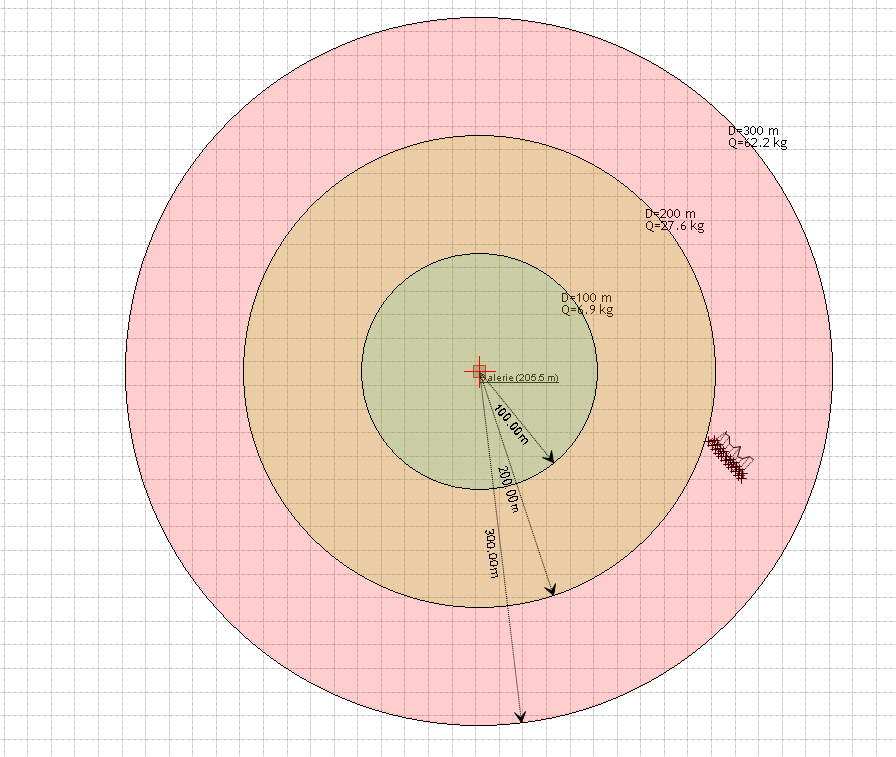
Re-clicking on the option to uncheck it disables the display of these circles.
This function is not available when a custom scaled distance formula is used.
Calculator
This option opens the attenuation law calculator.
ISO-Vibration map
This function calculates the PPV per unit load on each point of a point cloud.
Clicking on this option opens the following parameter window:
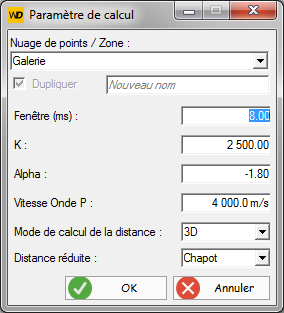
The Point cloud / Area combo lets you select the point cloud or area on which to perform the calculation.
In the case of a point cloud, the Duplicate option can be used to indicate that the cloud should be duplicated before calculation, in order, for example, to avoid overwriting a previous calculation performed on the selected cloud.
In this case, you can specify a new name for the cloud in the input field to the right of the option.
If no name is entered, the new cloud will have the name of the old cloud, with the addition of "_CU".
In the case of a zone, a point cloud will be extracted using the zone's Size parameter (this parameter corresponds to the grid pitch used to mesh the zone).
As with clouds, it is possible to specify a name for the cloud in the input field.
If no name is entered, the new cloud will have the zone name plus "_CU".
Window allows you to specify the size of the time frame in milliseconds used to calculate the unit load.
By default, the value of this time window is equal to that defined in user options, or to the last value used for this blast if it has been modified.
K and Alpha correspond to the attenuation law parameters to be used for the calculation.
P-wave speed allows you to modify the P-wave speed to be used for the calculation.
By default, these three parameters are derived from :
- In the case of a cloud, the default blast geology
- In the case of a zone, from the zone
It is possible to select the Distance Calculation Mode.
For more details, see the page dedicated to distance calculation modes.
The default distance calculation mode is the one defined in the user options.
The Reduced distance combo allows you to select the attenuation law formula to be used.
The formula selected for the site in the attenuation law window is selected by default.
Clicking OK will launch the calculation.
The result will be saved as a point cloud attribute and can be displayed:
- in 2D using the point cloud display palette
- in 3D via 3D cloud display properties
Charge per delay map
This function calculates the maximum charge per delay usable on each point of a point cloud.
This charge per delay is calculated according to the active zones of the blast.
For each zone, the following parameters are taken into account:
- PPV limit
- K
- alpha
When you click on this option, if several point clouds are active, a selector allows you to choose the one on which to perform the calculation.
The result will be saved as a point cloud attribute and can be displayed:
- in 2D using the point cloud display palette
- in 3D via 3D cloud display properties
This function is not available when a custom scaled distance formula is used.
Auto K, Alpha

This function automatically calculates the K and alpha of the attenuation law from the blast history according to certain criteria defined in the attenuation law window.
Clicking on this option will refresh the K and alpha of active zones.
Simulations sismiques par trou signature
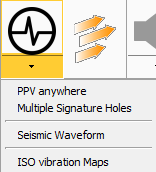
This button and its menu bring together the functions for calculating vibrations using the signature hole method.
Clicking on the button performs the same action as the first menu item PPV on active zones.
These functions require at least one signature hole to have been imported into a blast from the current site.
Signature holes can be added in the seismic record management window.
PPV anywhere
This function calculates the seismic result of the signature hole blast at any point.
Clicking on this option opens the following window:
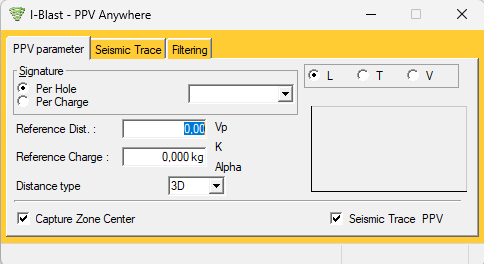
When this window is open, when clicking on the 2D plan, the seismic result at that point is calculated and displayed on the plan:
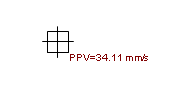
The parameters used for the calculation can be found in the calculation log.
The "PPV parameters" tab contains the main calculation parameters:
The Signature combo lets you select the signature hole to be used in the calculation.
The trace of the selected signature hole is displayed in the graph on the right.
The L/T/V selector lets you choose the signal path to be displayed.
The by hole/by loading option lets you specify whether the selected signature hole corresponds to the seismic signature of a complete hole, or only of a charge, in the case of a blast with holes comprising several charges.
Dist. Reference and Reference load recall the measurement distance and unit load associated with the selected signature hole.
It is possible to select the Distance Calculation Mode.
For more details, see the page dedicated to distance calculation modes.
The default distance calculation mode is the one defined in user options.
The Capture zone center option allows you to click on a zone in the 2D plan to perform the calculation at its center and associate the simulation result with the zone.
You can view the results for all zones directly on the 2D plan by activating the PPV display by zone (see Display pane).
Unchecking the Seismic trace option temporarily disables the calculation when clicking on the 2D plan.
The Seismic Trace tab contains the seismic trace of the last calculation performed:
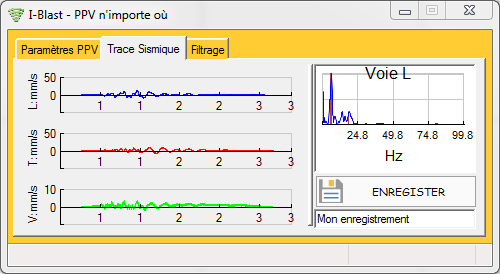
It contains the trace of the 3 seismic channels as well as the FFT of the channel selected in PPV parameters.
The Record button is used to record this signal in Blast's seismic signals.
The signal will be saved as a Simulation signal with the text in the input field below the button as its name.
The Filtering tab contains the final filtering parameters to be applied to the signal resulting from the calculation:
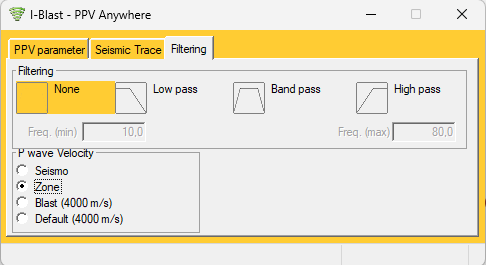
Filters can be selected:
NoneLow pass, which eliminates frequencies above theFreq. maxvalueBand Pass, which retains only frequencies betweenFreq. minandFreq. max.High Passwhich eliminates frequencies below theFreq. minvalue.
Holes Multiple signatures
This function enables calculations to be made using the signature hole method, with different signals for each hole.
Seismic signal
This option opens the advanced seismic calculation window.
ISO-Vibration map
This function calculates the PPV using the signature hole method on each point of a point cloud.
Clicking on this option opens the following parameter window:
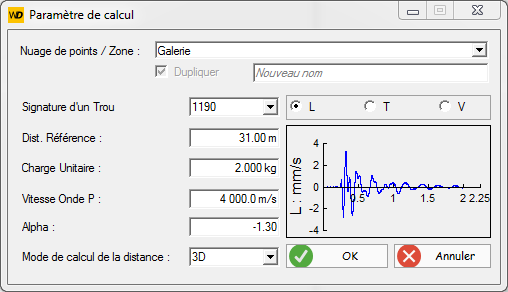
The Point cloud / Area combo lets you select the point cloud or area on which to perform the calculation.
In the case of a point cloud, the Duplicate option can be used to indicate that the cloud should be duplicated before calculation, in order, for example, to avoid overwriting a previous calculation performed on the selected cloud.
In this case, you can specify a new name for the cloud in the input field to the right of the option.
If no name is entered, the new cloud will have the name of the old cloud, with the addition of "_TS".
In the case of a zone, a point cloud will be extracted using the zone's Mesh parameter (this parameter corresponds to the grid pitch used to mesh the zone).
As with clouds, it is possible to specify a name for the cloud in the input field.
If no name is entered, the new cloud will have the zone name plus "_TS".
The Hole signature combo is used to select the signature hole to be used in the calculation.
The Dist. Reference and Unit Load recall the measurement distance and unit load associated with the selected signature hole.
P-wave speed allows you to modify the P-wave speed to be used for the calculation.
Alpha corresponds to the wave attenuation parameter to be used for the calculation.
By default, these two parameters are derived from :
- In the case of a cloud, from the default geology of the shot.
- In the case of a zone, from the zone.
It is possible to select the Distance Calculation Mode.
For more details, see the page dedicated to distance calculation modes.
The default distance calculation mode is the one defined in user options.
Clicking OK will launch the calculation.
The result will be saved as a point cloud attribute and can be displayed:
- in 2D using the point cloud display palette
- in 3D via 3D cloud display properties
Projection
This button opens the 2D projection simulation window.
Overpressure
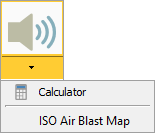
This button and its menu bring together the functions for calculating overpressure.
Clicking on the button opens the zone overpressure calculation window.
Overpressure on zones
Calculator
This option opens the attenuation law calculator in Air mode.
ISO-overpressure map
This function calculates the overpressure per unit load on each point of a point cloud.
Clicking on this option opens a parameter window identical to that of ISO-Vibration maps by unit load.
The only differences are :
Sound speedreplacesP-wave speed.- The
Distance calculation modeis locked to 3D. - The
Reduced distanceformula is locked on Hendron ( $SD=D/\sqrt3$ ) - A duplicated cloud whose name is not specified will have the name of the cloud or zone from which it originates, to which "_Airblast" will be added.
Calculs norme russe
This button opens the window for calculating projections, vibrations and overpressure in accordance with the Russian standard.
Autre
This button opens the mechanical equipment management window.